
How to Make a Hotel Lobby AI Video from Two Photos
Create a Hotel Lobby AI video with two separate photos. Follow the left and right role setup, sign-in, paid generation, task checks, and mobile download steps.
Hotel Lobby AI generation on Bulin 47 AI is paid. Start at the Hotel Lobby effect page and prepare two separate photos: the first fills the left-person role and the second fills the right-person role. A completed generation is a new 15-second horizontal 16:9 video that includes sound. Check video pack prices before you start; each new generation uses one video allowance.
See the existing examples
These existing AI video examples are published on the Hotel Lobby effect page. They show the two-person landscape result.
Existing Hotel Lobby AI sample 1 from the effect page.
Existing Hotel Lobby AI sample 2 from the effect page.
Match each photo to a role
The upload slots are role selectors. The order matters:
| Upload slot | Person shown in the finished scene |
|---|---|
| Left person | The person you want on the left |
| Right person | The person you want on the right |
If you want the two people in the opposite positions, switch the photos before you create the video. The page does not provide a separate role-reordering step after generation starts.
The effect page shows the left and right upload roles before sign-in. Sign in when you are ready to upload photos.
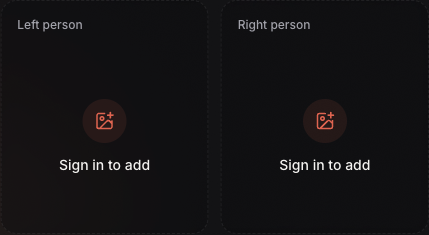
The two labeled upload roles are visible before sign-in; uploading requires an account.
Prepare the two photos
Before opening the uploader, choose one clear full-body photo for each person. Keep each person's clothing and shoes visible so you can identify the left and right roles. Use two individual photos rather than one group photo; the effect has two separate upload slots.
The creator accepts JPEG, PNG, or WebP files up to 10 MB each. Both people must be adults. Upload only your own photo or a photo of an adult who has agreed to this use; celebrity photos are not allowed. The consent notice appears beside the uploader, and you confirm permission when you upload.
Make the video step by step
- Open the effect and sign in. Go to Hotel Lobby AI. Sign in before uploading; the creator requires an account to choose photos.
- Fill the left slot. Tap or click Choose a photo under Left person, then select the first person's full-body photo. Wait until the upload finishes and the preview appears.
- Fill the right slot. Choose the second person's photo under Right person. Wait for its preview too. On a phone, pick the two images one at a time from the photo picker; the exact picker labels depend on the device and browser.
- Check the cast before submitting. Confirm that the correct person appears in each labeled preview, both uploads finished, and the clothes and shoes are visible. Replace a photo now if the people are in the wrong roles.
- Check your video allowance. One Hotel Lobby generation uses one video allowance. If your balance does not cover a generation, the creator opens a purchase prompt for a video pack. Choose a pack from the prompt or review the pricing page; the pack payment happens at checkout, and buying a pack does not itself start the video. For a fuller explanation of the site's pack and credit flow, see how video generation is charged.
- Start generation. Select Create scene. If you just completed checkout, wait until the page confirms your allowance, then select Create scene again. Wait for the site to acknowledge the request. If the submission status is uncertain, use Retry to check the same request or open My videos. Do not replace the photos or submit a second task while the first request is unresolved.
- Check the task status. A task can appear as Queued and then Processing. The Hotel Lobby page estimates about 20 minutes, depending on the queue; it is not a guaranteed finish time. You can leave the page and check the task later in My videos.
- Watch and download the result. When the task is complete, open it in My videos, review the 15-second horizontal clip, and select Download to save the MP4 file.
If a task is confirmed as failed, the allowance used by that task is returned to your balance automatically. A returned video allowance is not a refund of the pack payment. Wait for the return to finish before starting another generation.
Save the video on a phone
The download button saves the MP4 through your mobile browser. The file may go to the browser's Downloads folder rather than appearing in your Photos or Gallery app automatically.
iPhone with Safari
After tapping Download, check the Downloads button beside Safari's address or search field. You can also open Files → Browse → Downloads. Safari may save to iCloud Drive or to On My iPhone, depending on the download location selected in Settings. See Apple's instructions for finding iPhone downloads and choosing Safari's download location.
Android with Chrome
After tapping Download, open Chrome's More → Downloads list. You can also find downloaded files in the device's Files app. From Chrome Downloads, open the file or use More → Share to send it to another app. See Google Chrome's Android download instructions.
If the preview looks wrong or a task does not reach a confirmed status, return to the effect page and check My videos before creating another task. The Hotel Lobby effect page includes the current upload and generation controls.
Looking for the performance behind the scene? Read the Hotel Lobby trend and original source guide.