
How to Make a La Tormenta de Arena AI Video with Two Photos
Follow the two-photo La Tormenta de Arena AI video workflow: choose the balcony and dance roles, check the result, handle payment and download your video.
To make a La Tormenta de Arena AI video, sign in, upload two separate photos of consenting adults, and assign one person to the balcony and the other to the dance floor. Check the role labels before submitting. The effect makes a 15-second vertical 9:16 video with sound; you do not choose the duration or format.
Existing AI example from Bulin 47 AI. It is an interpretation of the scene, not footage from the film.
Before you start
- Sign in or create an account. You must be signed in to upload photos.
- Prepare two individual photos, with only one person in each. Use your own photo or one of an adult who has agreed to this use. The form does not accept photos of minors or public figures.
- Choose clear, well-lit half-body or full-body photos where the person and clothing are easy to distinguish. Avoid group pictures and heavy blur.
- Use JPG, PNG or WebP files up to 10 MB. Keep both photos available on your phone if you plan to create the video there.
- Video generation is paid. Each new task uses one video allowance. Check the current video packs and prices; packs are one-time purchases, not subscriptions.
Step 1: Open the effect and upload the balcony photo
Go to the La Tormenta de Arena creator. Select the first slot, Person on the balcony. This role is the person watching the dance floor from above, so use the photo of the adult you want in that position. Wait for its preview to appear before moving on.
If the upload fails, first check the file type and size, then try the same slot again. If the photo is rejected, choose another permitted image with one clearly visible person. Do not move the other person's photo into this slot just to get past an error; the two positions control different roles.
Step 2: Add the dancer and check both roles
Select the second slot, Person dancing, and upload the photo for the person you want on the dance floor beneath the spotlight. Before continuing, compare each preview with its label:
| Slot label | Photo role |
|---|---|
| Person on the balcony | Looks down toward the dance floor |
| Person dancing | Appears among the crowd under the spotlight |
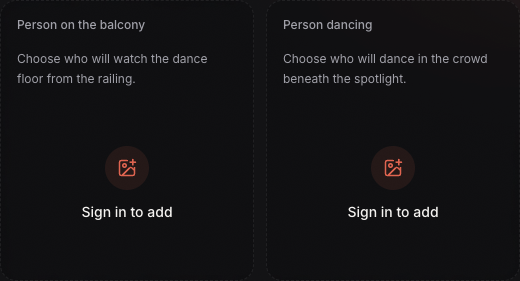
Before sign-in, the creator displays separate balcony and dancer photo roles. Sign in to add a photo to either role.
On a phone, the photo picker may show files in a different order from the roles. Tap each labeled slot separately, then check the preview beside or beneath that label. If the photos are reversed, replace the image in the incorrect slot before submitting. Use the labels and previews as the check, not the order in which the files appear in your gallery.
Step 3: Check your allowance and submit
Review the consent notice and make sure you have permission to use both photos. Confirm that the balcony and dancer previews are in the intended positions. The effect is fixed at 15 seconds and vertical 9:16, so there is no duration or orientation setting to change.
One generation uses one video allowance. If you already have an allowance, select Create my video to submit the task. If your balance is empty, the purchase dialog lets you choose a video pack. Complete checkout and wait until the site confirms that the allowance is available. The checkout shows the selected total before payment; there is no free video generation.
If checkout is still being confirmed, wait for the balance check or use its retry action. Do not pay again while the first payment is unresolved. If the site cannot verify the purchase, review Billing before trying checkout again.
Step 4: Follow the task and download the result
After submission, the task can be queued or processing. Queue time varies, and you do not need to keep the creator page open. Open My videos to check the status later. When it is ready, preview the video and select Download.
The result includes sound. If you want to add or change music when posting, choose a track available to your account in that platform and region. The included sound does not guarantee a particular song or an exact match to a film scene. Review the finished clip before sharing: AI interpretation can vary in movement and details, even when the photos are clear and the role order is correct.
If something looks wrong
- The roles appear reversed before submission: replace the photos in the labeled slots and check both previews again.
- A request may already have been submitted: check My videos before sending another request. A connection or status error does not always mean that no task was created.
- The task fails: the video allowance used for that failed task is returned automatically. This restores an allowance; it is not a refund to your payment card.
- The task is ready but the result differs from your expectation: compare the roles and photos you selected. A clearer input may help the subject and clothing read better, but it cannot guarantee specific movements or details. Any new generation uses another allowance.
You can return to the La Tormenta de Arena effect page to prepare another pair of photos. Review your images and role order before creating another paid task.
Find the download on your phone
On iPhone with Safari, open the browser’s Downloads list or Files → Browse → Downloads; the file may be in iCloud Drive or On My iPhone. See Apple’s download instructions. On Android with Chrome, open More → Downloads, then open or share the MP4; see Chrome’s Android download instructions. A browser download does not always appear automatically in Photos or Gallery.
For the song and film references, read the Tormenta scene and source guide.